Below you will find a short step-by-step guide on how to use the forum.
🧵 How to start a new discussion?
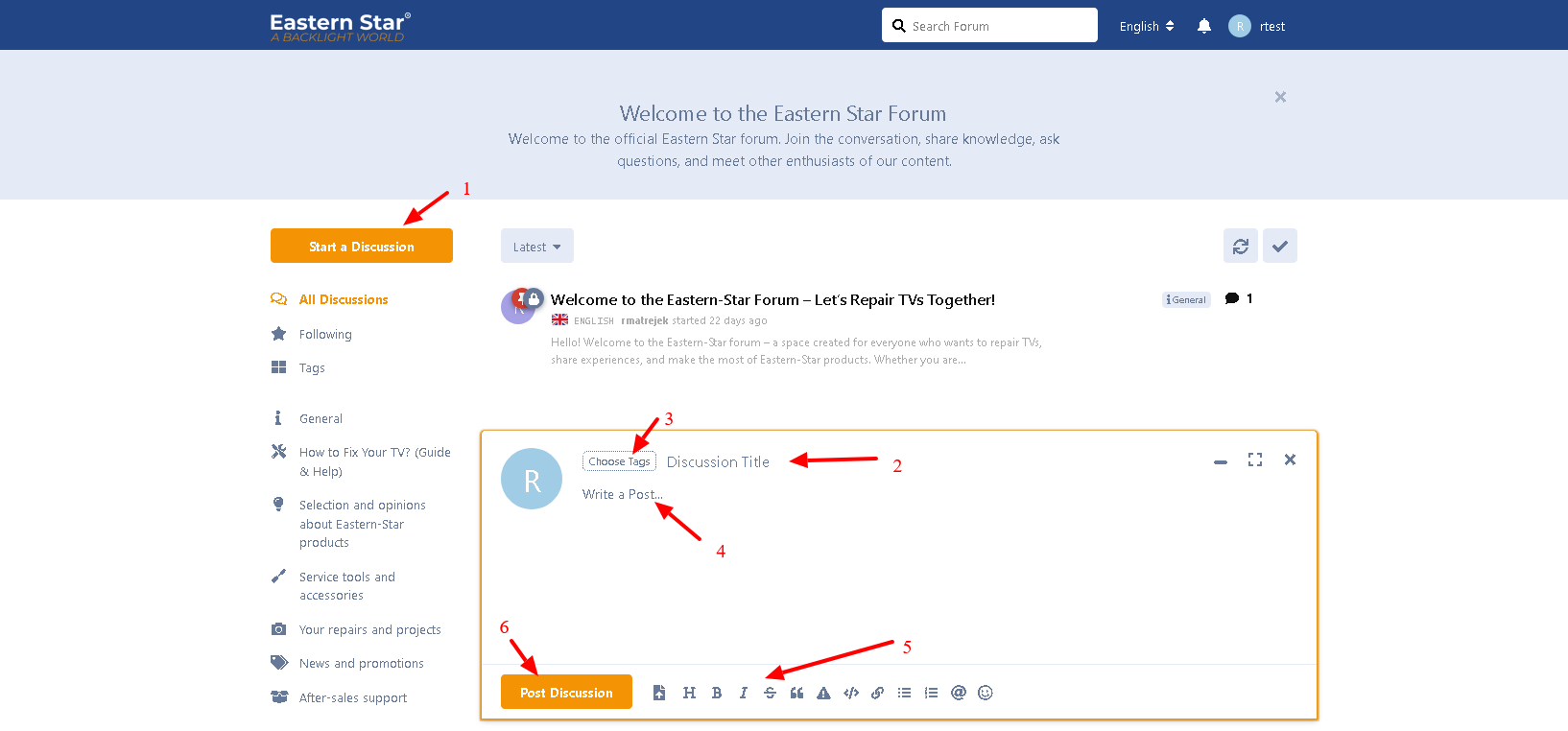
- Click the "Start a Discussion" button at the top left corner of the page.
- Enter the title of your discussion in the "Discussion title" field.
- Choose the appropriate category/tag, for example: "How to fix your TV?", "Step-by-step: backlight replacement", "Your repairs and projects".
- In the field below, write the content of your message.
- You can use formatting (bold, lists, links, images) by using the toolbar below the editor.
- Click "Add Discussion" to post your thread to the forum.
💬 How to reply to an existing discussion?
Go to the discussion you are interested in (click its title).
Scroll down to the text box labeled "Write a reply".
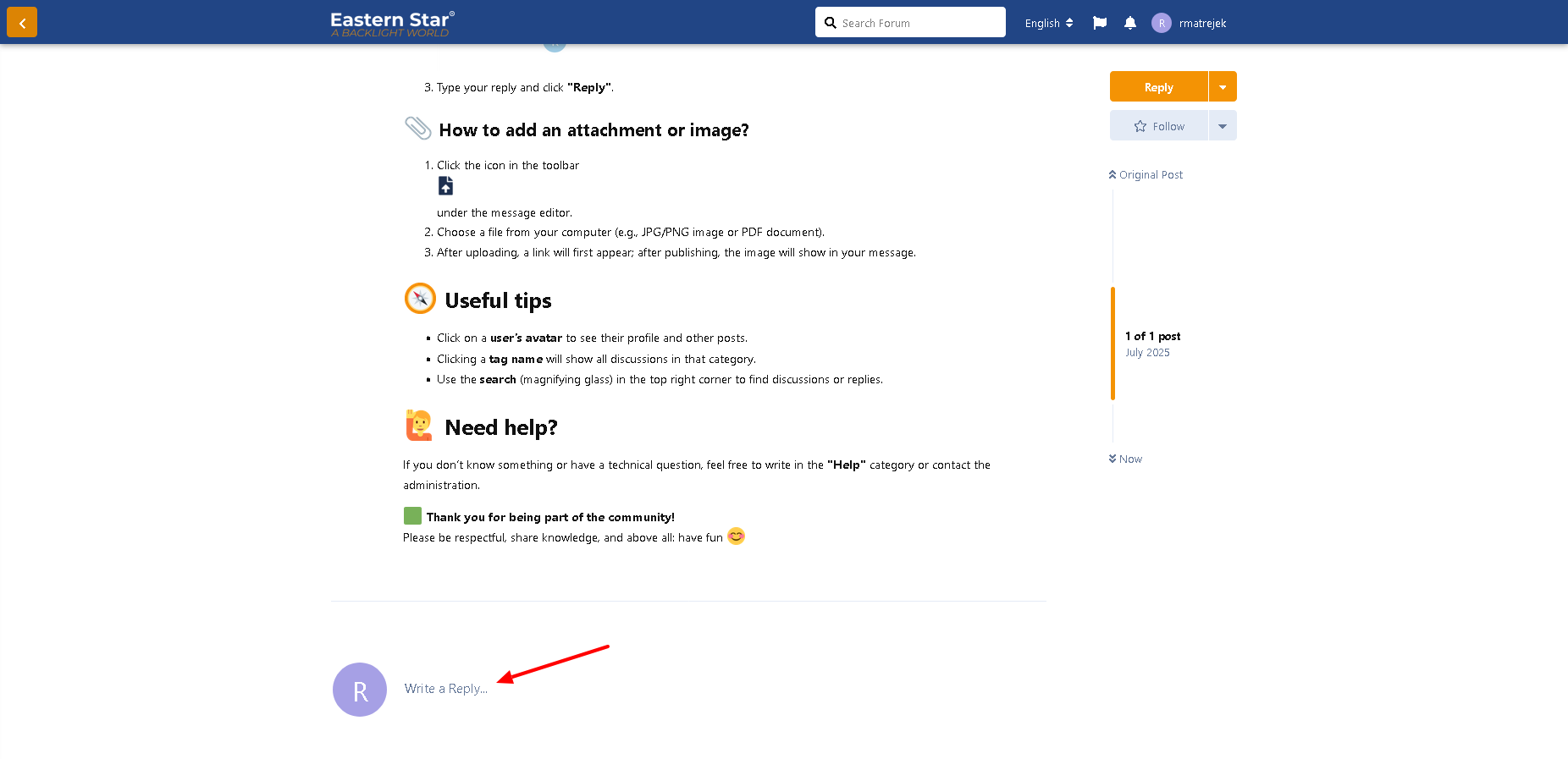
Type your reply and click "Reply".
📎 How to add an attachment or image?
- Click the icon in the toolbar
 under the message editor.
- Choose a file from your computer (e.g., JPG/PNG image or PDF document).
- After uploading, a link will first appear; after publishing, the image will show in your message.
🧭 Useful tips
- Click on a user’s avatar to see their profile and other posts.
- Clicking a tag name will show all discussions in that category.
- Use the search (magnifying glass) in the top right corner to find discussions or replies.
🙋 Need help?
If you don’t know something or have a technical question, feel free to write in the "Help" category or contact the administration.
🟩 Thank you for being part of the community!
Please be respectful, share knowledge, and above all: have fun 😊